Categories
Tags
-
#Tools
#game
#essay
#marketing
#бизнес
#ios
#online
#benefits
#market
#play
#iphone
#Therapy
#Business
#betting
#gaming
#SmartPhones
#comedy
#strategies
#paypal
#CRM
#content
#AI
#kid
#customer
#Promotions
#transport
##design
#juego
#entretenimento
#academic
#home furniture
#rental
#Juegos
#digital
#qr code
#Plumbing
#Forex VPS
# healthcare
##interior #homeinterior #home #design #homedesign #modern #luxury #luxuryhome #elegant #elegantinterior #homeinterior #moderninterior #moderninteriordesign #interiordesign #furniture #homedesigner #livingroom #room #roomdesign #roomdecor
#home remodeling contractors
#Impact of Body Fat
#Hormones
#Transform
#Photography
#Global YO
#Online-Casino
#Graphic
#Hydraulic
#Através
#Redenção
#Bonos
#Transforma
#Number
#Plateformes
#үрдістер
#गाइड
#Progress
#Serene
#marokkanischen
#jouer
#квадроцикл
#účinnosť
#সংজ
#užíváním
#Gameplay
#Jeux
#Emoción
#przełamać
#línea
#Dilerlərlə
#Soft2Bet’s
#Anmeldung
#Traces
Archives
How to Mirror Your iPhone or iPad to Any TV Without the Usual H
-
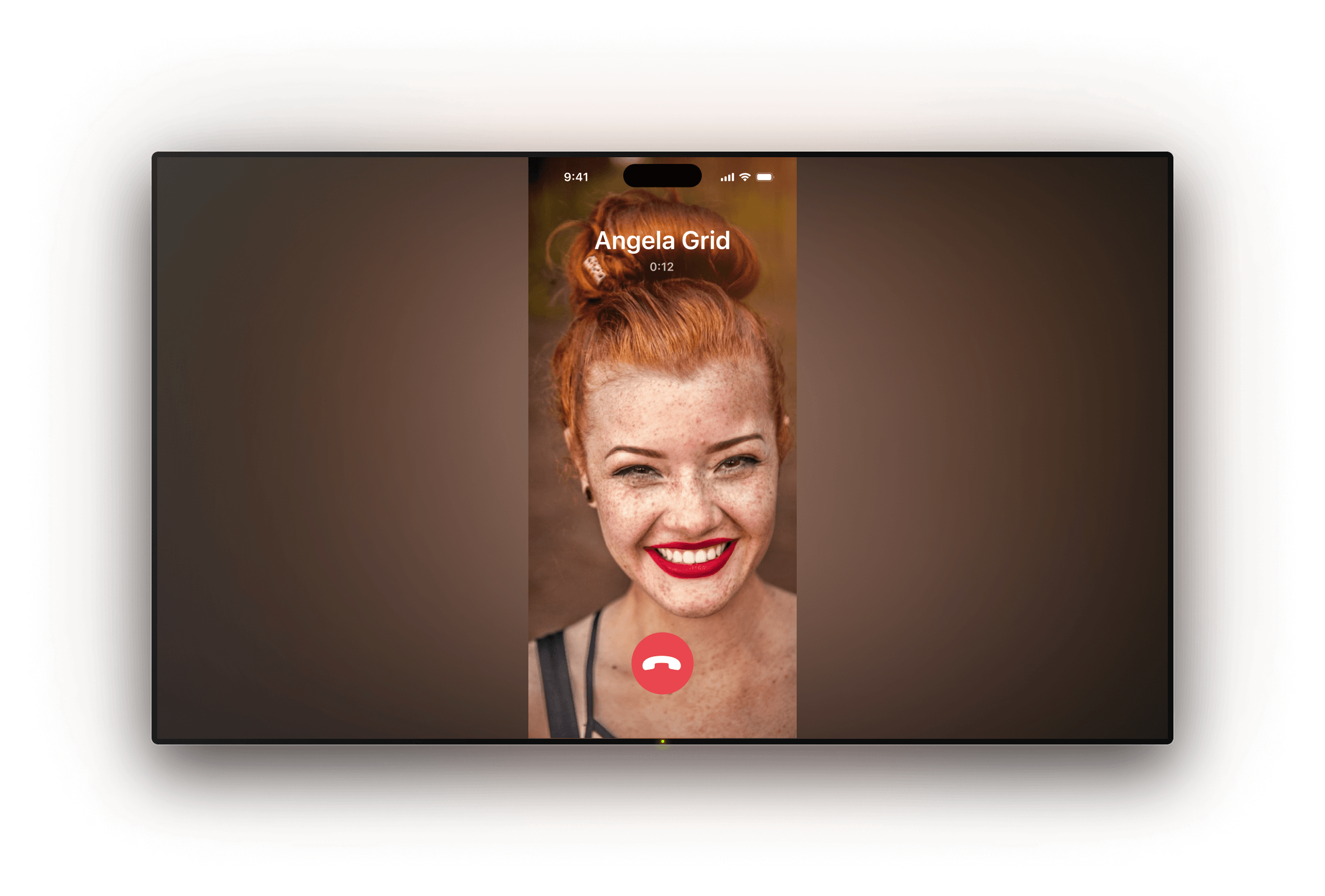
For all the polish Apple puts into its devices, getting content from your iPhone or iPad onto a TV screen still trips people up. One moment you're trying to show a video or photo album, the next you're tangled in settings, pop-ups, or cables that never quite work as promised.
The process doesn’t need to be this frustrating. Screen mirroring should feel natural—like an extension of your device, not a tech problem to troubleshoot. If you’ve ever found yourself crowding around a phone to share something, it’s time to make things easier.
Let’s break it down.
Why People Struggle With Screen Mirroring
The core idea is simple: you want what’s on your iPhone or iPad to show up on your TV. But there are a few reasons things fall apart:
- You don’t own an Apple TV.
- You’re not sure which app or receiver supports your device.
- You tried a free app, and it either didn’t work or looked awful.
- You gave up midway through pairing.
AirPlay works—but it’s picky. Cables can do the job—but they’re limiting, especially if you’re just trying to show vacation photos or stream a quick video. And many smart TVs, despite what the box claims, don’t play nicely with iOS out of the box.
So, people quit trying. Or they settle for poor-quality solutions.
But once you understand what’s needed—and what isn’t—screen mirroring becomes as quick as tapping a button.
What You Actually Need to Mirror Wirelessly
You don’t need Apple TV.
You do need two things:
- A smart TV or streaming device that supports receiving media (Roku, Fire TV, Chromecast, or any DLNA-capable device).
- A reliable app that acts as the bridge between your iOS device and that TV.
That’s it. No dongles. No adapters. Just a solid Wi-Fi connection and an app that knows how to talk to both sides.
With the right setup, you can start mirroring your iPhone screen in seconds—no cables, no confusion.
Key Features to Look For in a Mirroring App
Not all mirroring tools are built the same. Some are heavy on permissions, slow on performance, or overrun with ads. You don’t want that.
Here’s what actually matters:
- No lag. The connection should feel real-time, especially if you’re playing video or scrolling photos.
- Wide compatibility. The app should work across different receivers—Roku, Fire TV, Chromecast, DLNA TVs—without making you guess.
- Full-screen support. No one wants a tiny window in the middle of their TV.
- Audio + video mirroring. Some tools skip audio unless you pay. That’s not useful.
- No crazy setup. Ideally, it just finds your TV on the same Wi-Fi network and connects.
You also want to make sure your device doesn’t overheat or drain battery fast during use. Efficient coding on the app’s side matters.
One example of a tool that checks these boxes is DoCast, which lets users Mirror iPhone screen to nearly any smart TV or streaming device—without cables, without accounts, and without having to think too hard.
Supported Devices: What Works and What Doesn’t
Here’s the good news: most modern smart TVs work just fine—as long as they’re on the same Wi-Fi network as your iPhone or iPad.
Here’s what’s commonly supported:
- Roku (most models from the last 5+ years)
- Amazon Fire TV and Fire Stick
- Google Chromecast (including built-in Chromecast on many TVs)
- DLNA-enabled smart TVs (Samsung, LG, Sony, etc.)
You don’t need any specific brand loyalty here. The app handles the hard part—making sure your iOS device speaks the right “language” for each receiver.
What doesn’t work? Older TVs without smart features, or those on different networks. And if your receiver needs to be updated or paired manually, you may hit roadblocks. Always check that your device firmware is current.
Troubleshooting the Usual Glitches
Even with the right setup, a few things can get in the way. Here’s how to keep things smooth:
- Wi-Fi must be strong and shared. If your phone and TV are on different networks (like a guest network vs. home), they won’t see each other.
- Disable VPNs or firewalls temporarily if devices don’t connect.
- Restart both devices if the TV isn’t showing up as an option.
- Ensure permissions are granted. Apps may need access to local network settings, which iOS sometimes blocks by default.
These aren’t major issues—they’re the kinds of things that take a minute or two to fix once you know what to check.
Final Thoughts: Make It Easy, or Don’t Bother
People use screen mirroring to make things easier. That’s the point. Whether it’s watching a video together, showing photos, or playing music through better speakers—what matters most is how quickly it works and how well it looks.
You shouldn’t need a degree in networking to put your photos on a bigger screen. Nor should you have to sort through a dozen apps trying to find one that works without making you sign up or pay just to test it.
Once you get set up with a reliable tool, screen mirroring stops being a workaround. It becomes part of how you use your iPhone or iPad—especially when sharing content with others.
And when that happens, you stop asking “how to do it,” and just start doing it.